
Sign In with a Passkey
What’s a Passkey?
A passkey is a secure, password-free way to sign in to apps and websites. Instead of remembering or typing a password, you use your device’s built-in security—like Face ID or Touch ID—to verify it’s you. Passkeys are stored safely on your device and can’t be guessed, stolen in a data breach, or phished, making them both more secure and more convenient than traditional passwords. Learn more about Passkeys.
If you do not have a Passkey set up for your browser or device, you’ll have to do so before you’re able to enable Passkey sign-in for your Lumanu account.
How to enable passkey sign-in for Lumanu
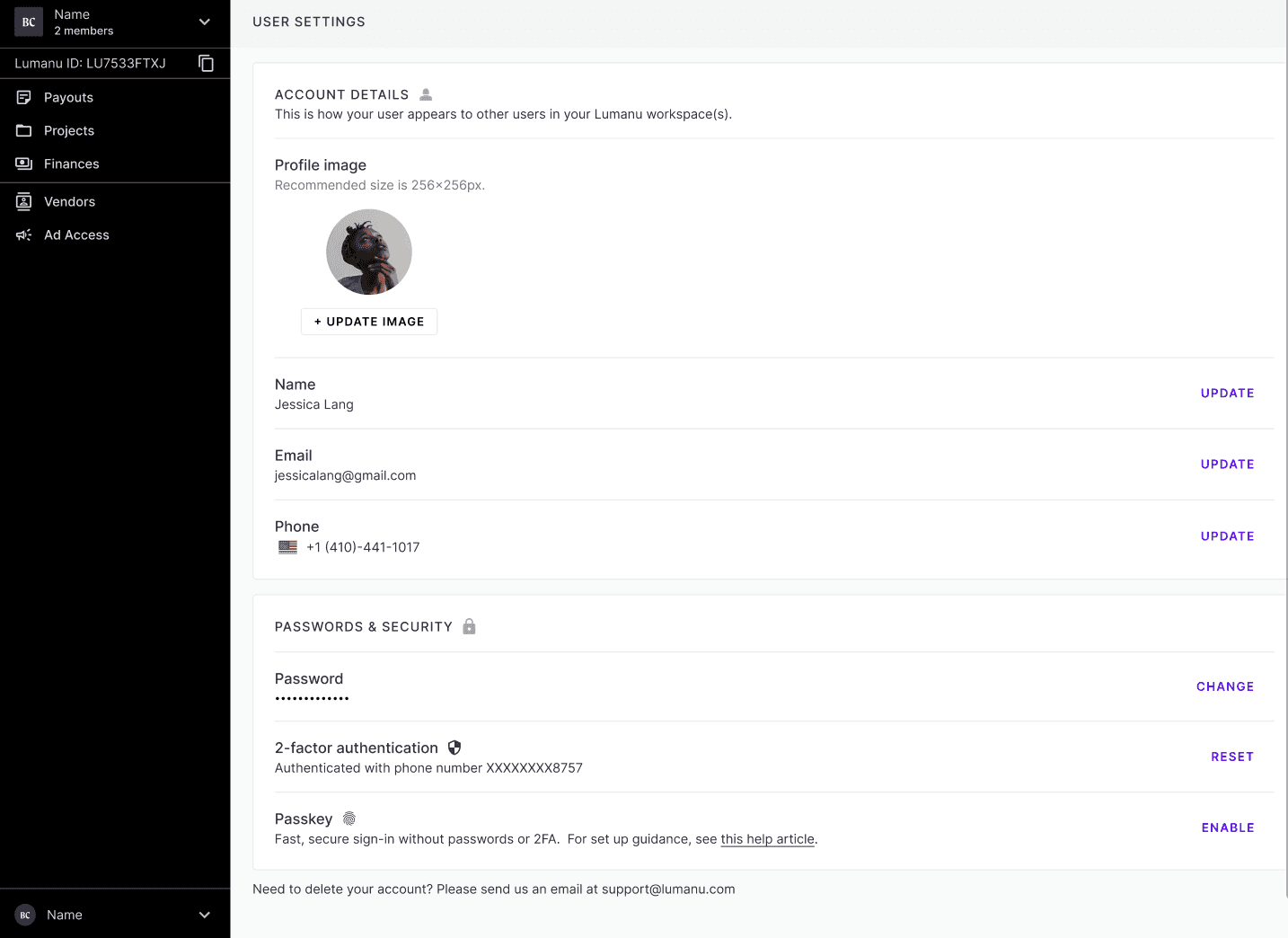
Click on your username in the bottom left corner, then click User Settings
Scroll down to Passwords & Security
Next to Passkey, click Enable.
Click continue.
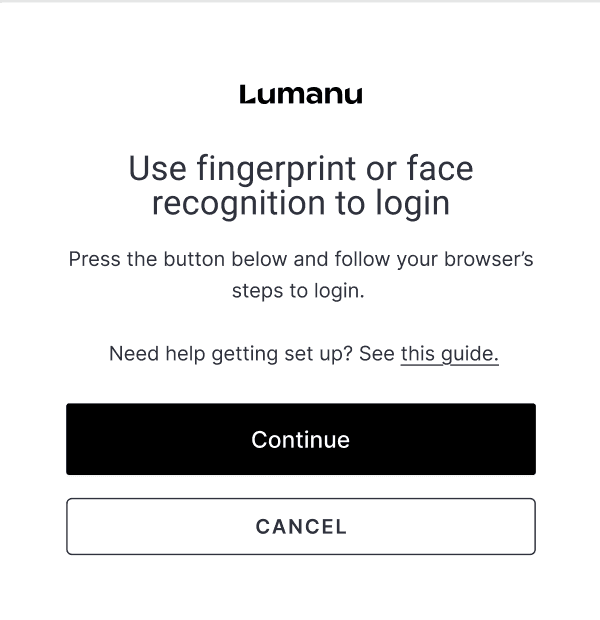
Your browser or device Passkey settings will be triggered.
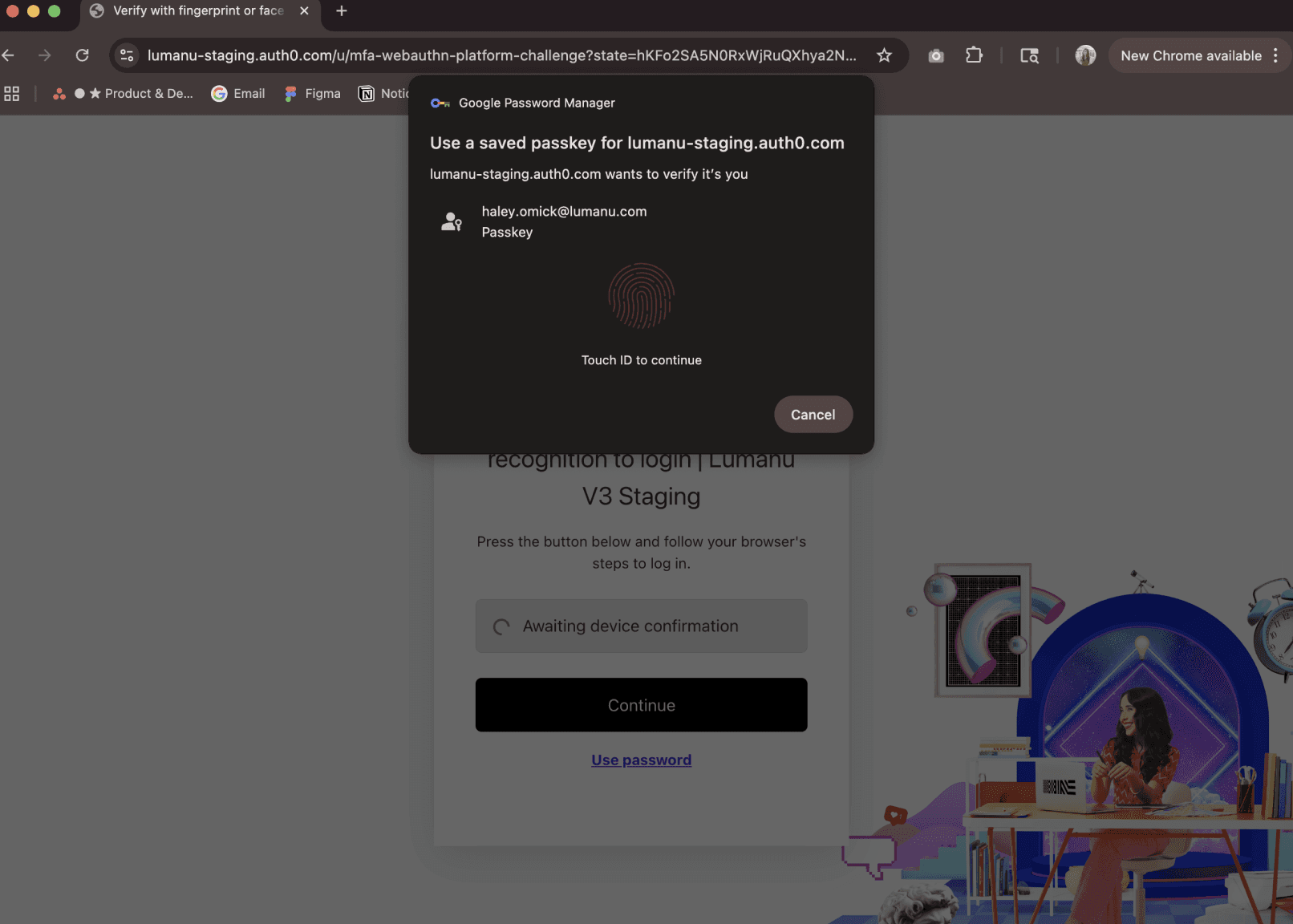
Follow the steps provided.
If you’re enabling Passkey on a laptop, you’ll be directed to authenticate your account by
If you’re enabling Passkey on a mobile device, you’ll need to set up 2-factor authentication
If you run into issues attempting to authenticate via a second device:
Continue your account setup using 2-factor authentication via SMS or an authenticator app.
Once 2-FA is enabled, you’ll see the option to set up Passkey without requiring a second device.