
Onboarding Process for Domestic Vendors
Create a Lumanu account via your client's email invite or custom sign-in link to be auto-added as a Vendor to their team.
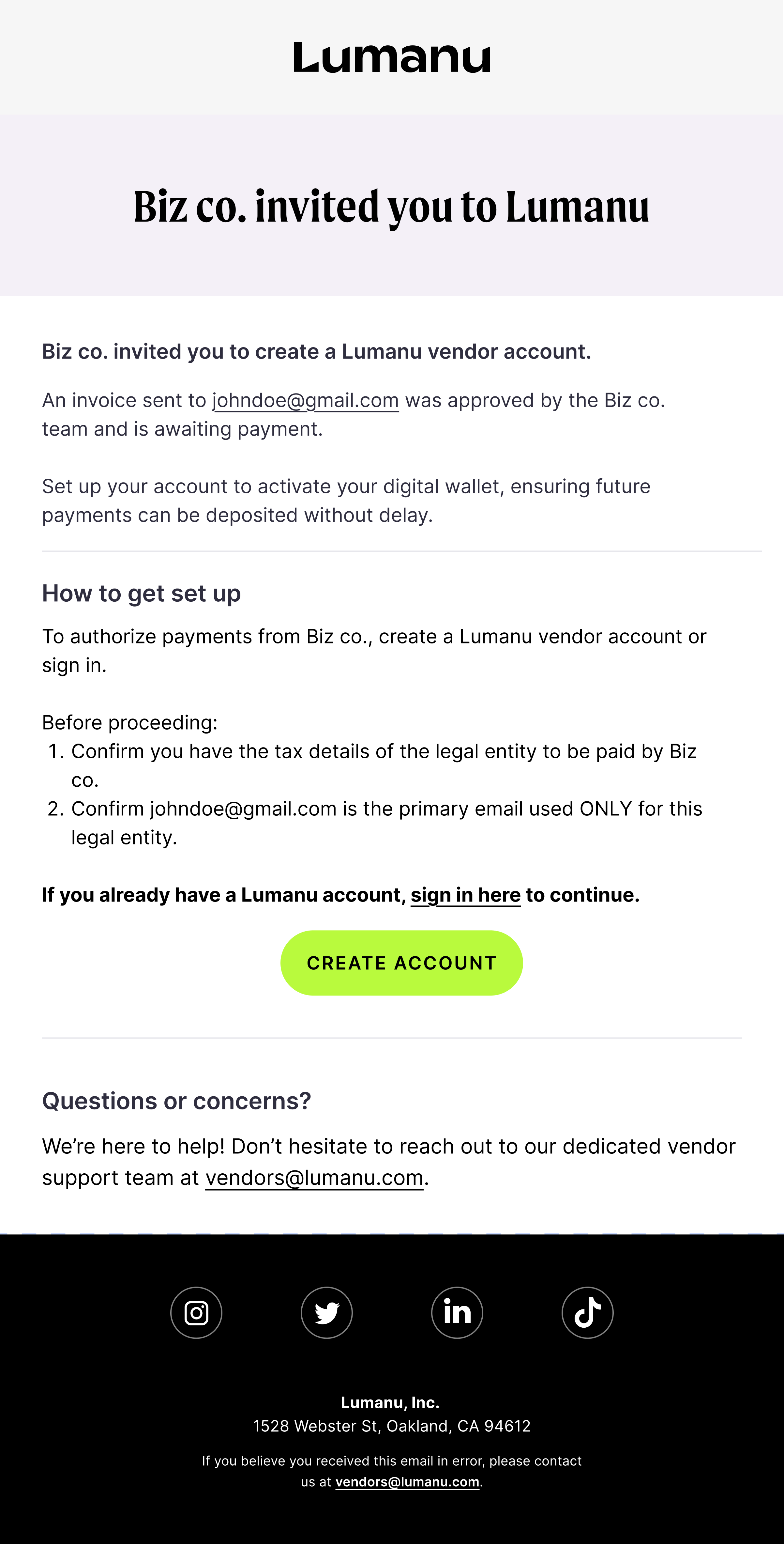
Click the Create Account button to be redirected to the Lumanu app, where you'll accept your brand partner's invite.
If you already have a Lumanu account, sign in via this screen.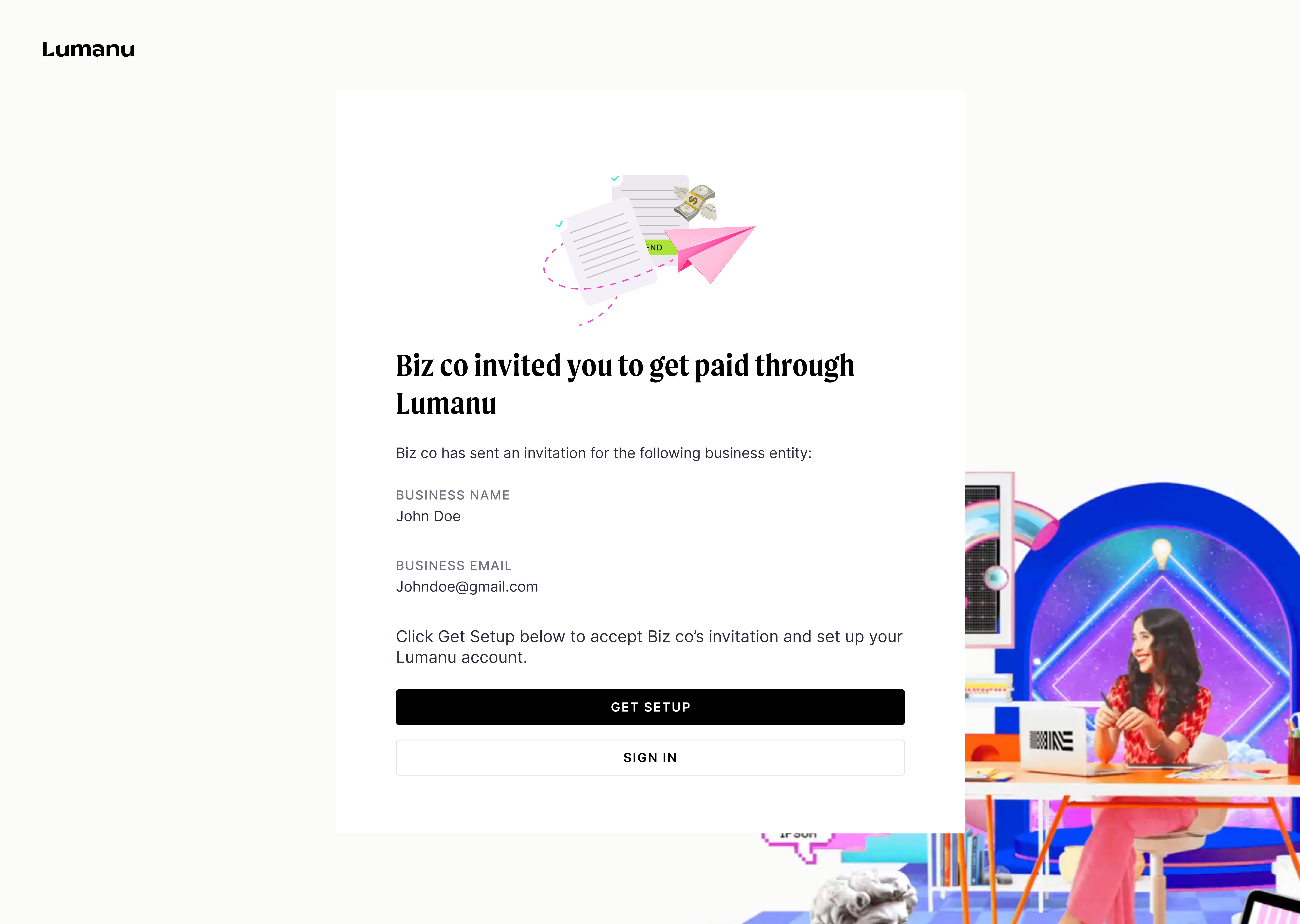
After accepting your invite, the Lumanu app will request basic details to begin setting up your user login and business profile.
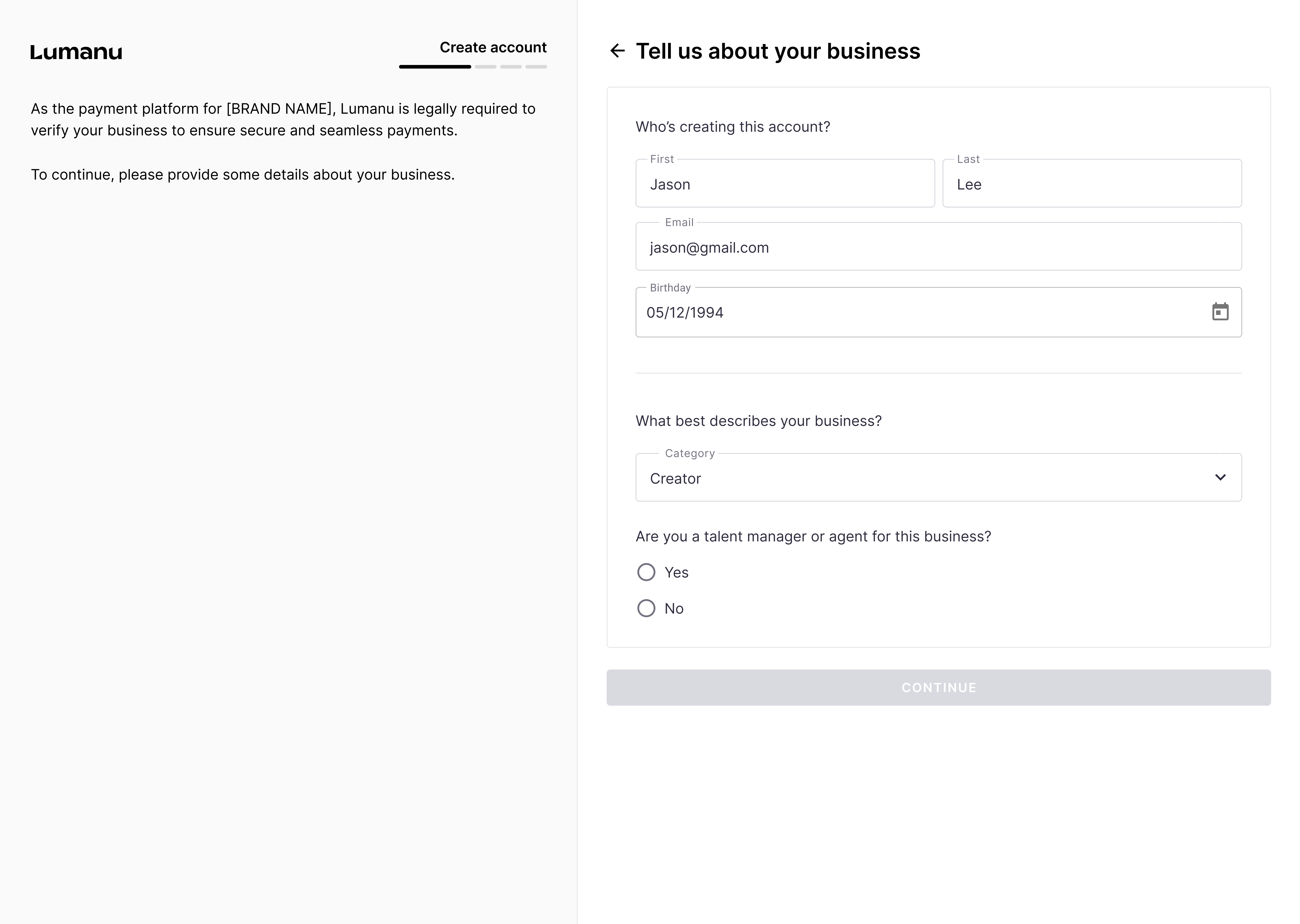
Next, you'll provide the location and entity type of your business. Lumanu uses this information to customize your onboarding experience, gathering tax and compliance details as needed.
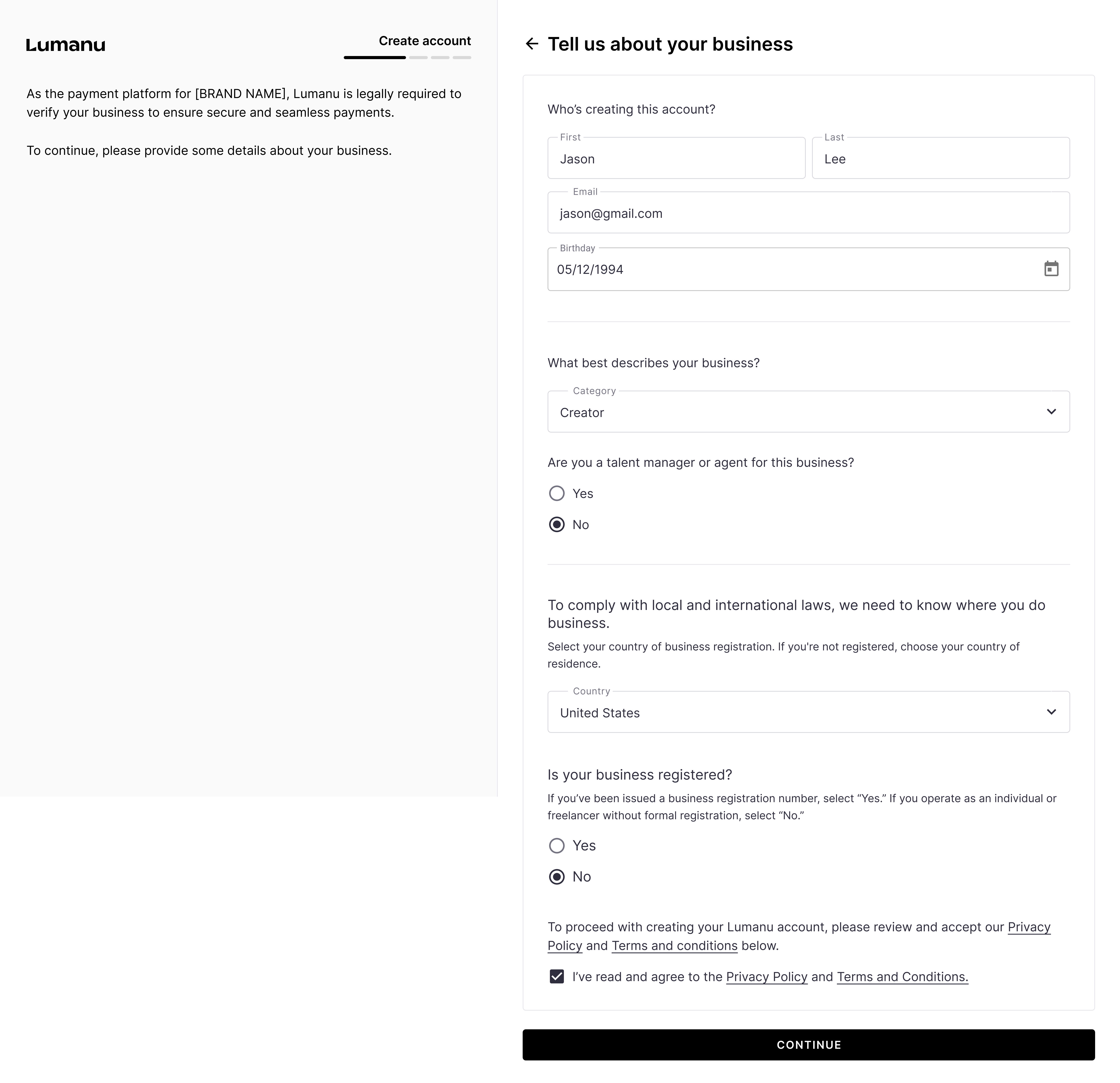
If your business isn’t registered, the Lumanu app will default your business entity type to Sole Proprietorship.
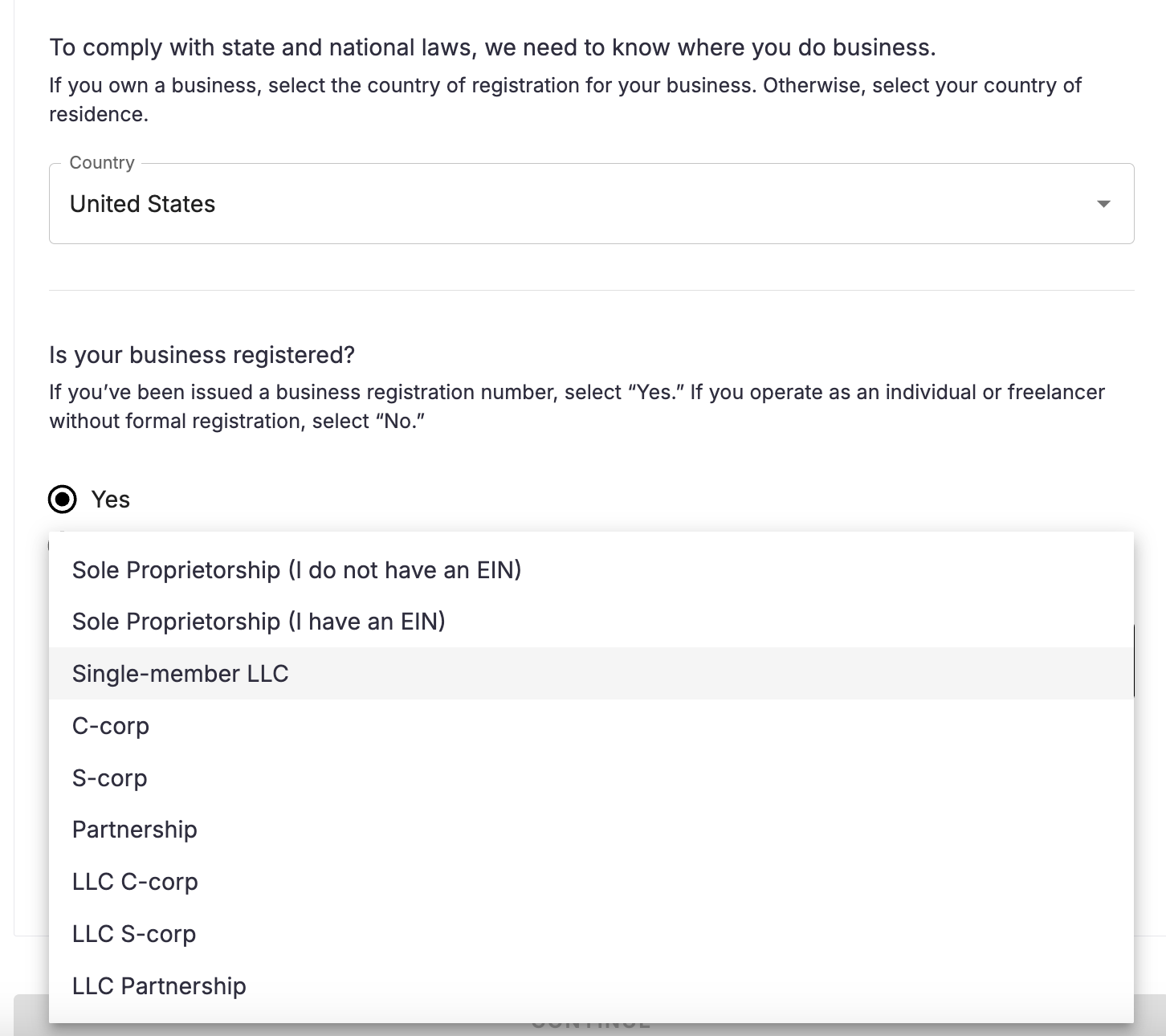
If you have a registered business, you'll choose from the below business entity types in the dropdown:
Sole Proprietorship ( I do not have an EIN)
Sole Proprietorship (I have an EIN)
C-corp
S-corp
Partnership
LLC C-corp
LLC
Using the information provided in the previous step, Lumanu will request either your tax identification number (Sole Proprietor) or registered business number (registered business).
Note: Lumanu protects vendor data with encryption, secure access controls, continuous monitoring, and GDPR-compliant infrastructure. For more details on Lumanu's data protection efforts, see this link.
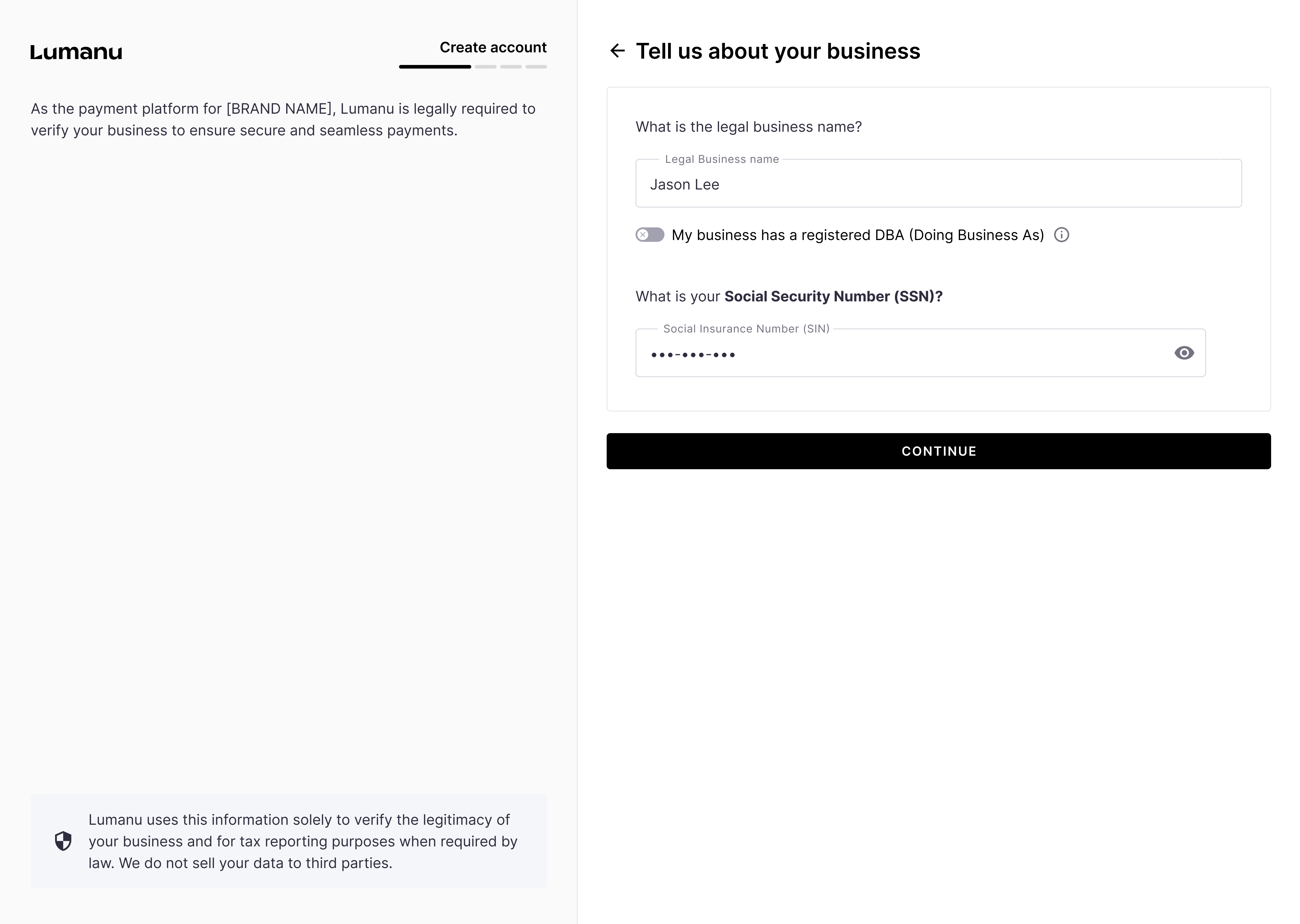
Lumanu will use the information provided to verify your identity and/or business entity, as well as confirm the registration number isn’t already tied to an active Lumanu account.
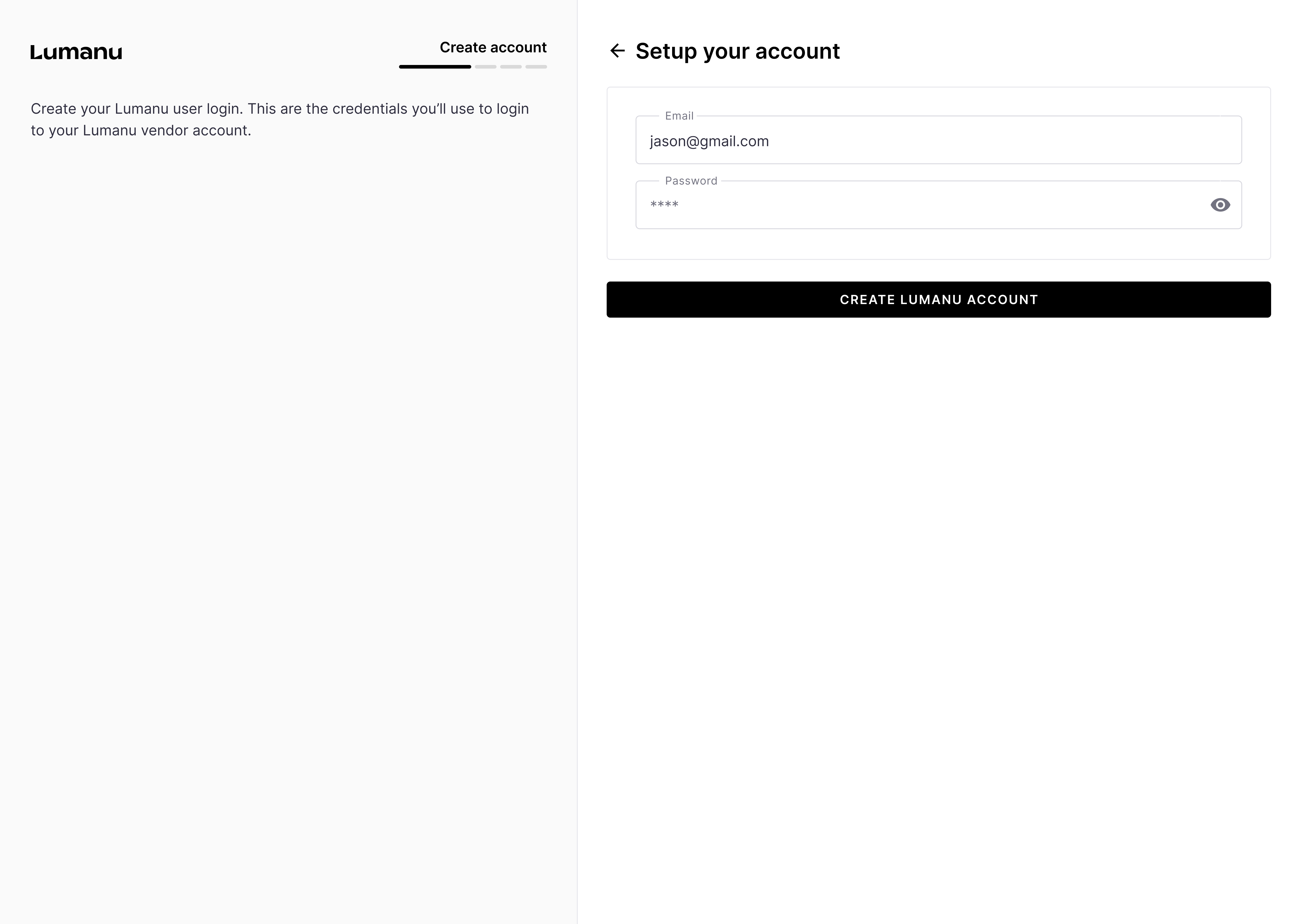
If the registration number provided is verifiable and new to the Lumanu system, you'll be prompted to create an account password and sign-in.
*If the registration number submitted is already registered under a different Lumanu account, you'll be blocked from proceeding and redirected to sign-in.
Why does Lumanu block identification or business registration numbers from being linked to multiple accounts?
This ensures payments are routed to the correct account, strengthens platform security, and keeps all payment history centralized for accurate tax reporting and compliance at year-end.
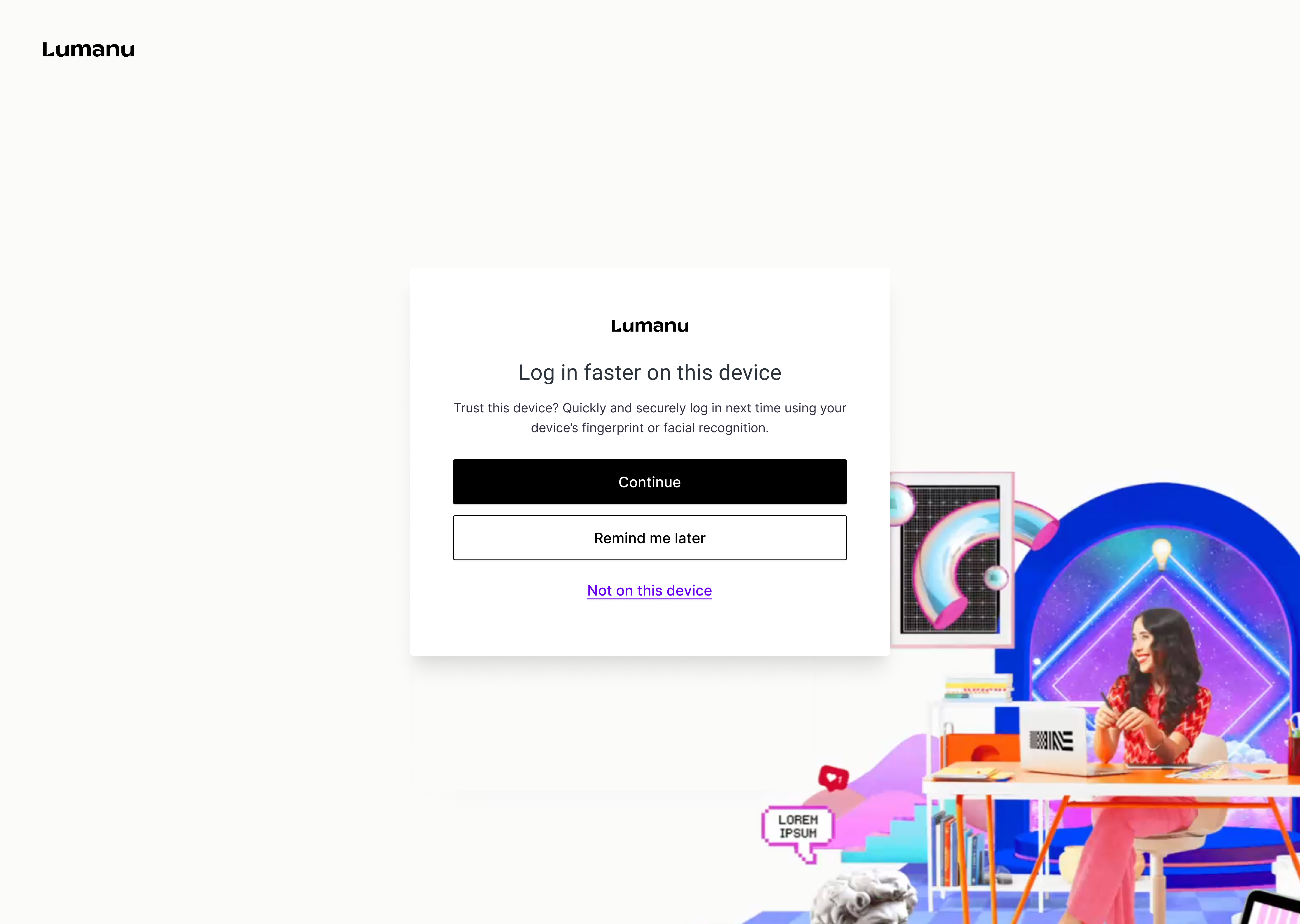
All users are required to add a second layer of security to their account. You have the option to enable either Passkey sign-in or two-factor authentication (with SMS or an authentication app).
Business and identity verification
Lumanu verifies the identity and business entity of each vendor account to meet KYC/KYB requirements, prevent fraud, and ensure global tax compliance.

Lumanu will automatically fill in any information that’s been provided in earlier steps.
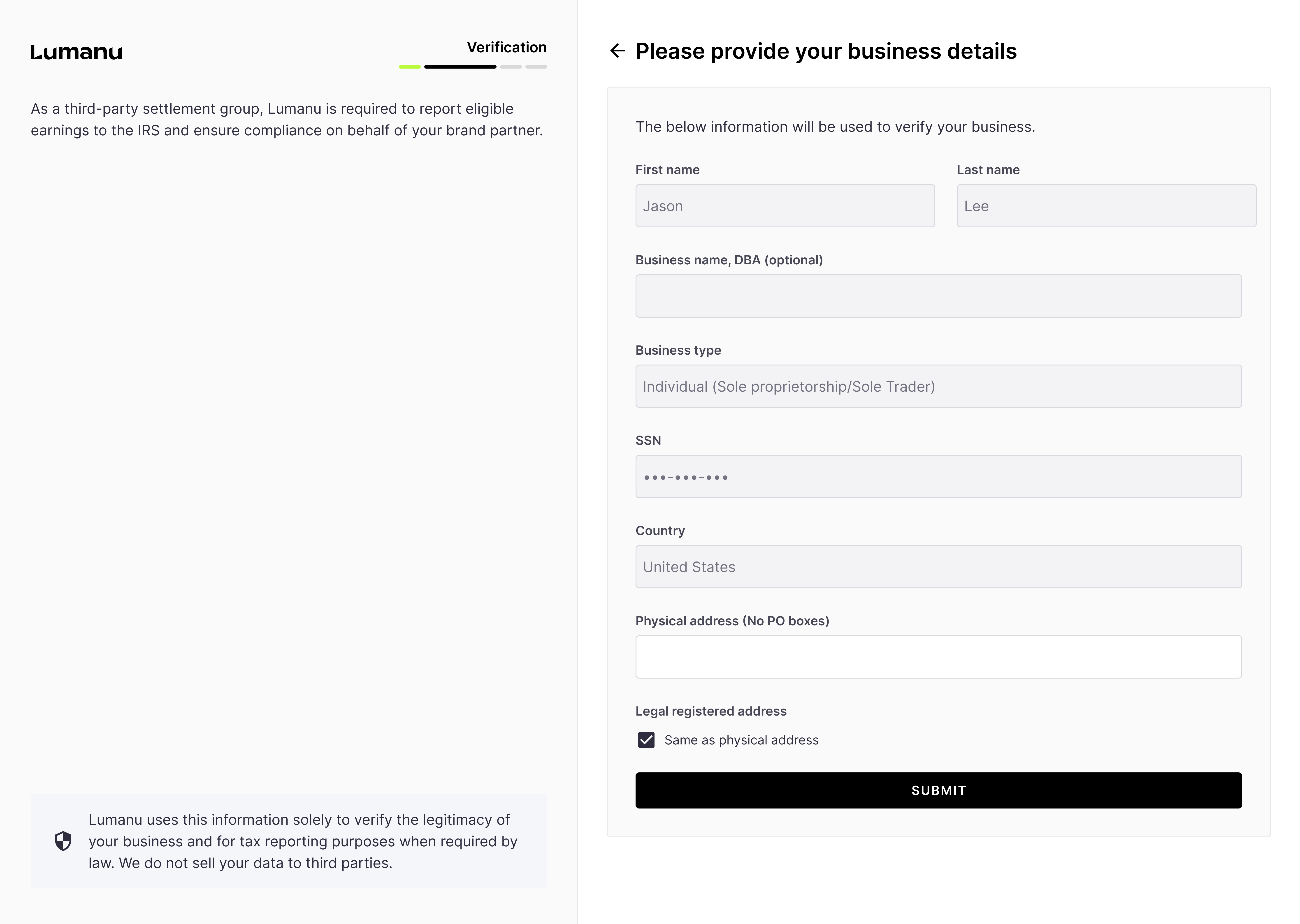
*A W9 will be automatically generated behind the scenes.
If Lumanu is unable to verify your identification/business registration number, you'll be asked to provide a picture of a form or identification and/or articles of formation.
Lumanu will redirect you to the Lumanu app.
From here, you have the option to copy and share your Lumanu ID, connect a withdrawal method, or fill out your vendor profile.